Which way is the front?
Row 1 is at the front, shown at the top. Columns run left to right as you look at the chart, not from a seated participant's viewpoint. Each position has a stable label such as R2C3. Set one to twelve rows and one to twelve columns. Click a seat in the layout to mark it unavailable; click it again to restore it.
The layout is a rectangular grid. Unavailable positions can represent a missing desk or a gap, but this is not a scale drawing or an access-route assessment. Review the real room before using the result. This tool does not pin particular people, apply keep-apart rules or reserve front seats.
A ten-person room rehearsal
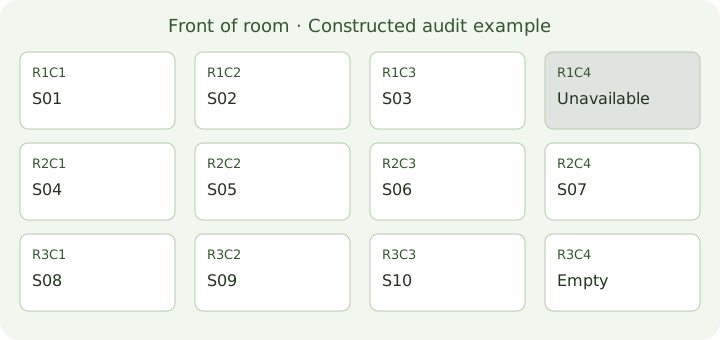
No real class is represented. Our synthetic roster contains Participant / S01 through Participant / S10. Load the example: three rows and four columns, with R1C4 unavailable. Twelve positions become eleven usable seats. Ten entries leave one usable seat empty, in addition to the unavailable position.
Check the seat counts first: ten occupied, one Empty and one Unavailable. Find S01 in the chart and note its row and column. Check the same coordinates in the assignment table and both downloads. Repeat for S02 through S10. A ten-person total alone would not catch a person placed twice while another was omitted.
For a deliberately constructed audit example, put S01, S02 and S03 in R1C1, R1C2 and R1C3. Keep R1C4 unavailable. Put S04 through S07 across row two and S08 through S10 in R3C1 through R3C3. R3C4 is empty. This is a teaching arrangement, not the random output promised by the sample button. Your actual empty seat can be elsewhere.
Now replace S10 with a second copy of Participant / S01. The input still has ten entries. Both S01 labels receive places, identified by different Input entry numbers, while S10 is absent. If they mean two people, give them distinct labels; if the second line is an accidental paste, correct it. The tool preserves repeated entries and cannot decide who they represent.
Will everyone fit?
In the same room, turn off R3C4. There are ten usable seats for ten entries, so no usable seat remains empty. Turn off R3C3 as well and only nine seats remain. Generation must stop. Restore a seat or correct the roster after confirming who should participate. The tool never silently drops someone to make the room fit.
Blank lines do not create people. Add a blank line after S03 in our ten-entry fixture: the count stays ten and S04 remains Input entry 4. Surrounding spaces are removed. Commas, accents and quotation marks inside a label remain text within that one entry.
Which chart did you save?
The assignment table includes every position in row order. CSV has Seat, Row, Column, Status, Input entry and Name columns. Empty and Unavailable rows have no participant. TXT gives the same positions and labels. Print shows the chart and its table, with controls hidden; check your browser's paper settings and preview.
In our first rehearsal, CSV has twelve data rows, not ten: ten Occupied, one Empty and one Unavailable. Exclude the header. Input entry numbers 1 through 10 must each occur once in occupied rows. Compare S01's row with the chart before checking the other nine entries. After switching off R3C4, the twelve positions remain, but the statuses become ten Occupied and two Unavailable.
CSV quotes commas and double quotes. Labels starting with =, +, @ or - receive an apostrophe for spreadsheet formula protection. TXT and the screen keep the original label. Downloaded files do not change after you edit the page.
Changes clear the chart
Changing names, row count, column count or any seat clears the current result and download links. Resizing also restores every position to available, so mark missing seats again. Show chart hides the editor and explanation for display; Exit chart or Escape restores them. This is a page display mode, not browser fullscreen.
A new draw may repeat seats or even the whole arrangement. There is no seating history, skill balancing or accommodation check. Names and results stay in this tab and disappear on reload. They are not sent to analytics or added to sharing URLs. Use the classroom group generator when you need groups and roles instead of individual seats.